
HTC Vive
Make sure the Vive is connected to your computer and working.
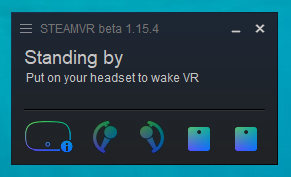
Launch Steam VR.
Make sure you get the go status on the headset and controllers.
Click AlterVerse in the Library and log in.
Click the Settings button on the bottom left, select the Graphics button on the left and make sure the Display Mode is set to Borderless. Click Apply.
Click the Audio button on the left and set the Audio Device to whatever headset you have connected to your Vive.
Click done.
Choose Disruption on the game selection screen and click Play Now!
Choose the Game mode and click the Join Ship button.
On the Avatar customization screen, at the bottom right, put a check mark in Launch in VR.
Click Done. Let’s Go!
Lower your Vive onto your face and pickup the controllers!
Once in the game:
Press the small inset button on the bottom of the left controller to open the menu. Direct the laser pointer to the buttons on the bottom right and click the button to the right of the shopping cart to reset the view. This will center the VR camera for you. You may have to do this off and on so be familiar with how to do it!
GUI Mode:
Use the B button on the left controller to activate the mouse cursor.
Use the right stick to move the cursor around the screen.
Pull the left trigger to click the mouse cursor.
Now you can click and hold on a GUI with the left trigger and use the right stick to move the GUI items around the screen.
While the mouse cursor is active, you can use the center slider thing on the left controller to move the game gui forward and back away from your eye.
Press the B button on the left controller again to leave GUI Mode.
Interacting with Items in the game:
The white chevron selection indicator appears when an item, button or NPC is clickable.
The chevron indicator can be moved by moving your head up, down and side to side.
When it appears over an item, press the B button on the right controller to make the selection.
Game/Player Mode:
Right Controller:
Joystick rotates the player.
Index finger trigger is fire.
B Button is interact. If the chevron is hovered over a weapon or button, press B to pick it up or press it.
A Button – crouch
Left Controller:
Joysick is movement forward, back and side to side.
Index finger trigger to aim down sites with a gun.
Middle slider thing switches weapons.
B Button activates mouse cursor for interacting with GUI.
A Button is for Jump.
XR75 Mode:
Click on the Rear or Lower Launchbay teleport signs on the bridge to get to where the XR75’s are located.
Hover over an XR75 and when you see the white chevron selector press the B button to get in.
Pull the right trigger button to move forward. Left trigger moves you backward.
To climb, dive and turn, steer by pointing the controllers the direction you want to go.
Press the right inside button to fire the gun.
If you’re having issues moving, you can set sensitivity settings in the GUI Mode.
Press the B button on the left controller, move the cursor using the right stick.
Navigate to the Menu and click the My Settings button by pulling the left trigger.
Click the Controls button. From there you’ll see Player, Weapons and XR75 buttons.
Click XR75 and make adjustments there.
More info on setting Binds can be found below:
https://www.windowscentral.com/how-create-custom-keybindings-steamvr